Free Express Shipping Australia-Wide | International Shipping Available
A professional guide to app setup, tool connection, sensor activation, programming, and TPMS relearn procedures using the AUTOMATE Bluetooth Programmer. Written by a professional TPMS engineer and real people with hands-on experience. While we do our best to keep everything accurate, mistakes can happen. If anything is unclear or does not suit your vehicle, please call us. We believe in good old-fashioned customer service and are always happy to help.
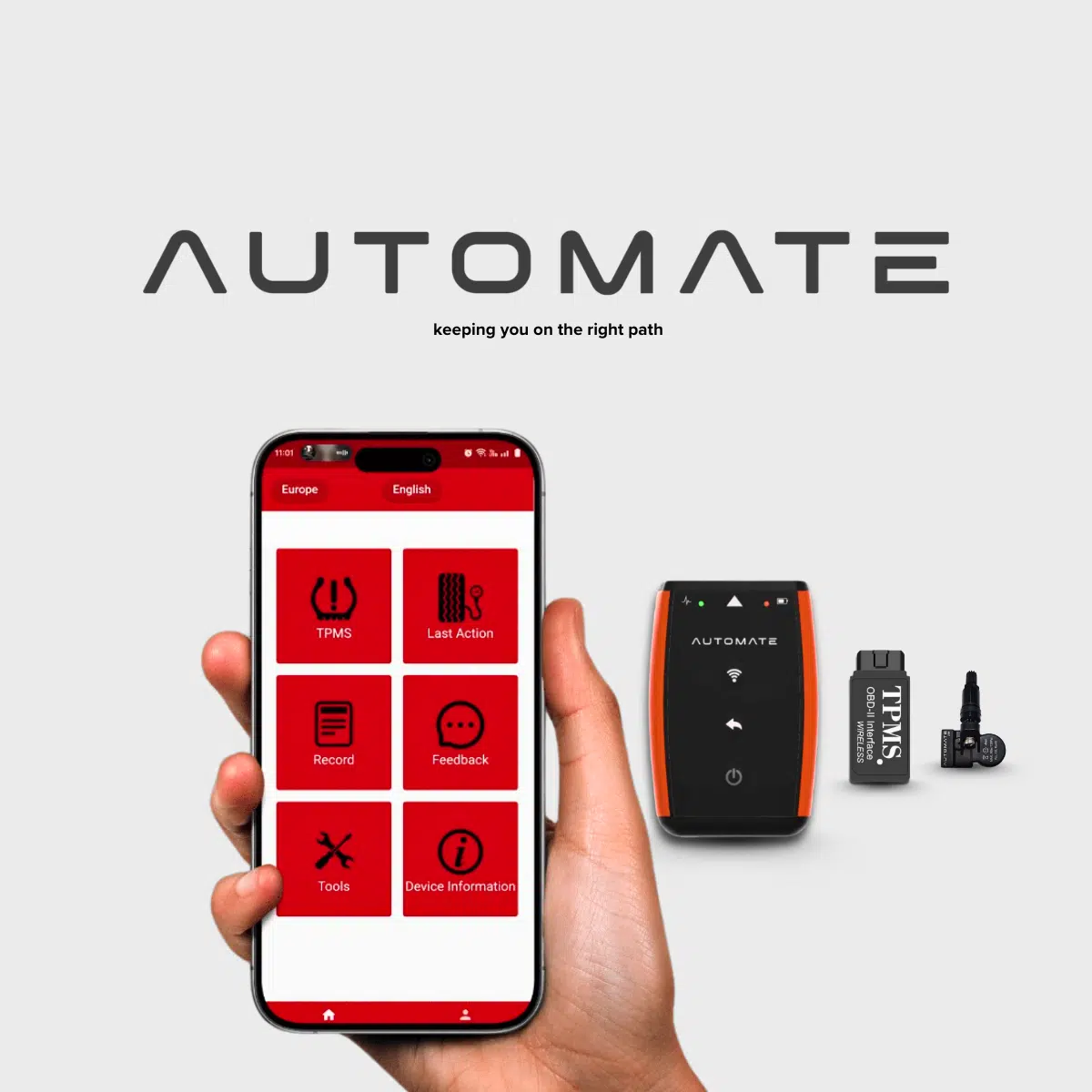
The AUTOMATE Bluetooth Programmer is a mobile-based TPMS service solution designed to help users read sensor data, duplicate IDs, create new IDs where supported, and follow the correct sensor relearn method after installation.

Main TPMS area used for activation, programming and learning functions.
Before connecting the programmer, download the correct app for your phone and allow Bluetooth access.

Install the DAM100 app from the App Store.

Install the Automate Link app from Google Play.
Open the app, tap the connection icon, then follow the pairing steps. The device usually appears as Auto NFC_XXX. (Also Make Sure the Bluetooth Programmer tool is also turned ON)


Make sure the correct vehicle market is selected before programming or relearning sensors. Imported vehicles can use different TPMS systems depending on their original sales region.

You can find this option after clicking on the TPMS button from start of the Menu. Select the correct vehicle market before beginning the TPMS process.

Choose the app language that is easiest for you to follow.
The activation function is used to trigger the original sensors and read their IDs before replacement. This is especially useful when cloning the existing sensor data onto new AUTOMATE sensors.


After reading the old sensors, the programmer can prepare new replacement sensors using the method that suits the vehicle and job. The system will display a “No Sensor” error if a TPMS sensor is missing, unresponsive, or malfunctioning.


Retrieve the current sensor IDs—typically for duplicating them onto new AUTOMATE sensors to ensure a seamless replacement process. This is done by pointing the programmer at the existing valve stems, as illustrated in the image above.

To copy a specific sensor ID, begin by selecting the desired position—e.g., Position LF (Leſt Front)—from the interface. Click “Copy from Activate” and point the programmer at the newly installed sensor located at the corresponding wheel position. Repeat this process for all four sensors by selecting each respective wheel position (LF, RF, LR, RR) and copying the sensor data accordingly.
This option allows you to manually input the sensor ID. Sensor IDs are typically printed directly on the body of the sensor. Use this method only if you are confident in what you are doing. It is especially useful when dealing with a dead or damaged sensor that cannot be read using the programmer. Simply enter the original sensor ID to replicate it onto the new sensor.
Generate a fresh sensor ID where the vehicle supports learning new IDs. This option is used to generate a completely new sensor ID. It is typically selected when the original sensor ID cannot be retrieved by any method. The system will automatically assign a new ID to the sensor. Note: For certain makes and models, additional steps may be required to program the new IDs into the vehicle’s ECU to ensure proper communication.
Once the sensors are programmed, the vehicle may still require a final learn process before the TPMS warning light will turn off fully.

Some vehicles automatically recognise the new sensors after a drive cycle.
Some vehicles require a manual relearn sequence according to manufacturer instructions. This information available in our “Learn” Tab
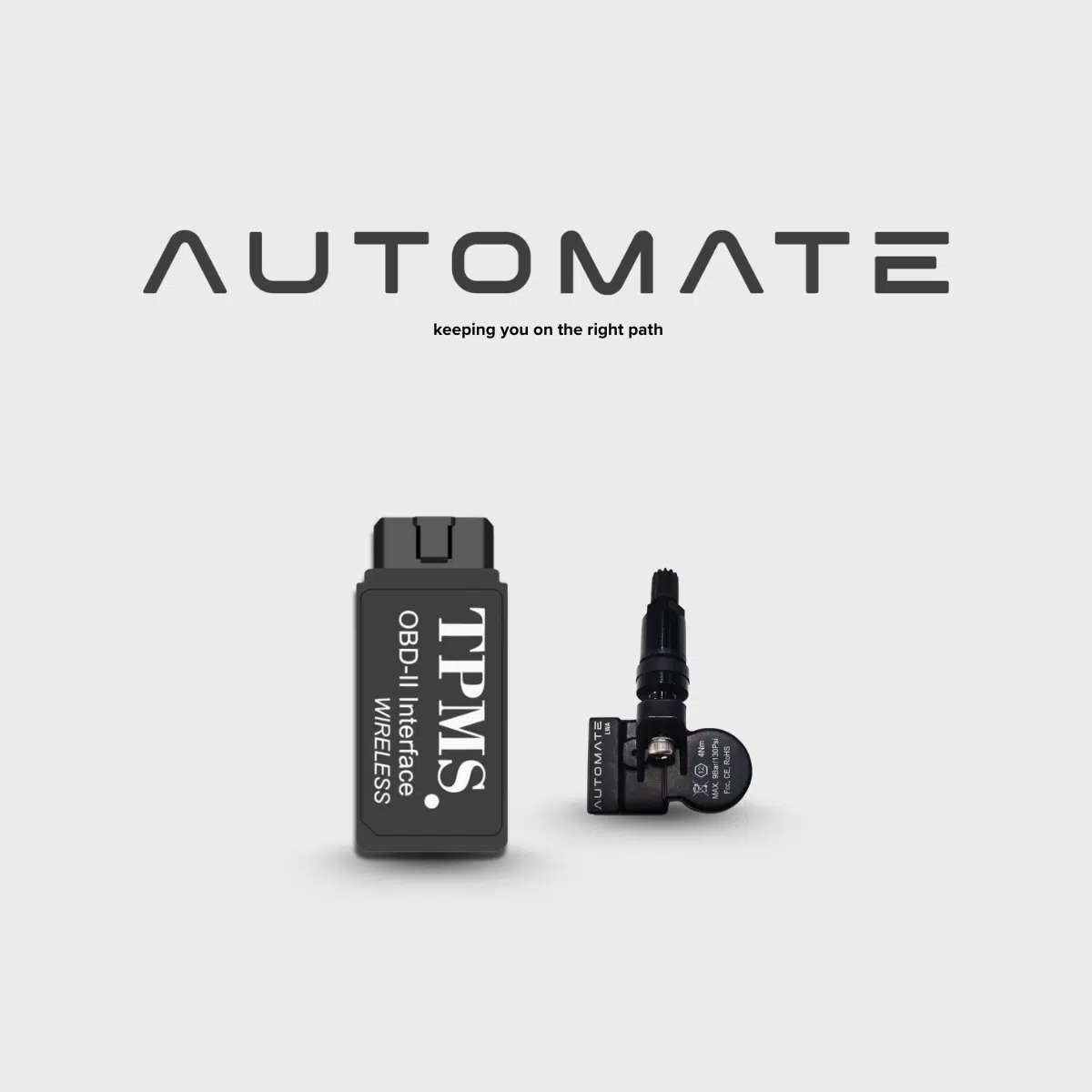
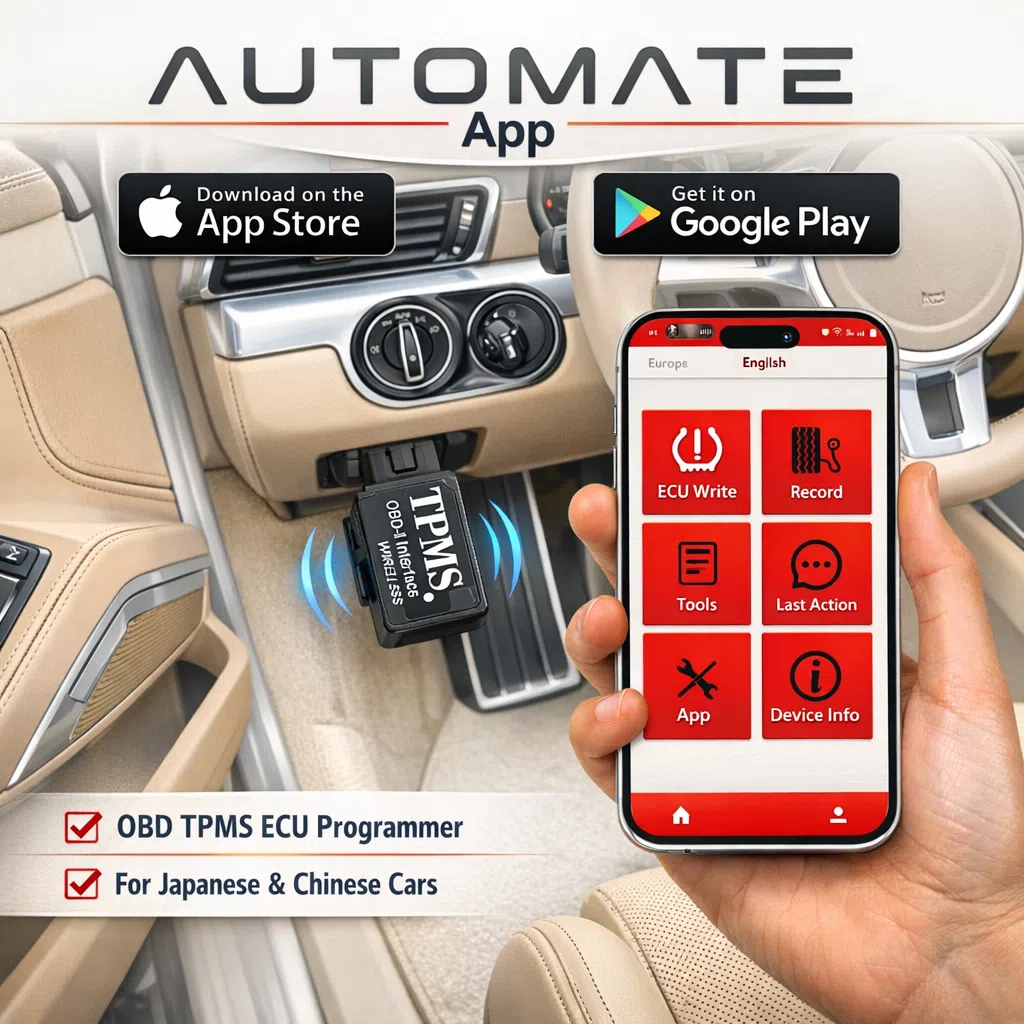
Some vehicles require the new sensor IDs to be written into the ECU to complete the setup correctly. If you purchased one of our OBD programming tools with this order, simply plug the OBD device into your vehicle’s OBD port, then connect it to the app by tapping the VCI button in the top-right corner. Once all sensor IDs have been scanned or generated, go to the Programming tab and press Write ID to register them to the vehicle.

Leave feedback through the app.

View all past vehicles programmed with the device.

Displays details of the most recent vehicle programmed.
The app also includes a user area for account registration and login. Registering an Account 1. Open the app and go to “User.” 2. Tap “Login/Register.” 3. Fill in your details to create an account. 4. Sync your data across all compatible devices.
Check Bluetooth is turned on, the correct app is installed, and the tool is nearby.
Move the tool closer to the valve area and make sure the original sensor is still active.
The vehicle may still require a drive cycle, static relearn, or OBD ECU registration.
Always confirm make, model, year and original market before programming the sensors.
If you need assistance with activation, cloning, programming, or the correct TPMS relearn process, please contact MyTPMS Australia for support.
